Import jobs & logs
Every import is a recorded job with a live, detailed log, so you can track progress, photos, and errors.
Every import is recorded as a job, so you always have a history of what ran, what it brought in, and whether it succeeded. The Import jobs tab is that history.
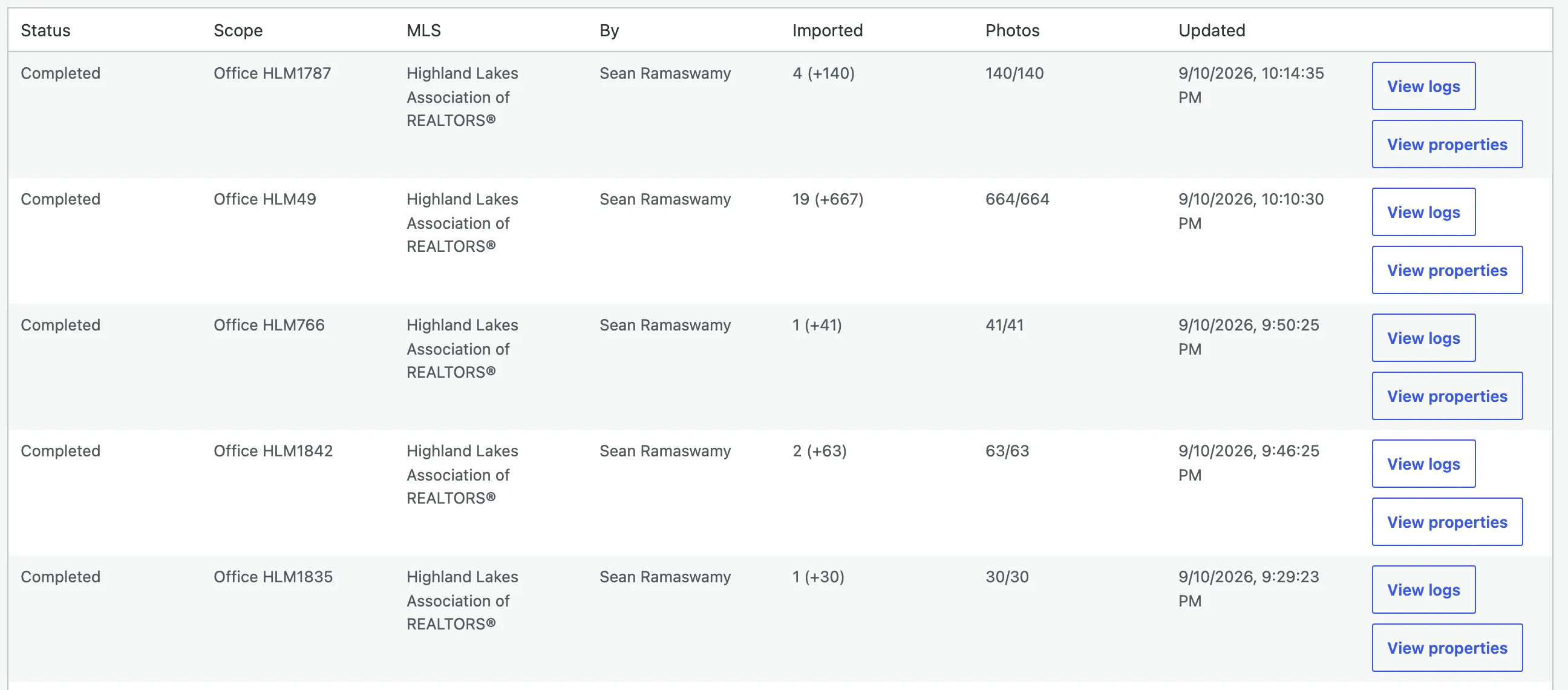
Each row shows:
- Status, where the run ended up (see below).
- Scope, the listing or office it targeted.
- MLS, which source it pulled from.
- By, the team member who started it.
- Imported, records imported, with
(+N)related records (media, rooms, unit types, open houses) and any errors. - Photos, media downloaded out of expected, with any failures flagged in red.
- Updated, when the run last changed.
You see your own runs; administrators see everyone’s. Each finished run has two buttons that expand a panel beneath the row: View logs and View properties.
Run statuses
Section titled “Run statuses”| Status | Meaning |
|---|---|
| Running | Walking the feed and importing records. |
| Downloading media | Records are in; the run’s photos are still localizing. |
| Completed | Records and photos both finished, no errors. |
| Completed with errors | Finished, but some records or photos didn’t come through. |
| Failed | The run stopped on a fatal error. |
| Cancelled | You stopped the run. |
A run isn’t “done” while its photos are still downloading. Importing the records and localizing the photos are two phases, and the job stays active until both finish.
Following a run live
Section titled “Following a run live”While a run is active it appears in an Active imports panel at the top of the tab, tailing its log live as it works. Start several imports and each gets its own live panel. Photo downloads run in a single, shared, paced worker across all runs, so there’s one Stop all downloads control for the media phase (and a per-run Cancel while a run is still walking the feed).
The log: a glass box for every run
Section titled “The log: a glass box for every run”Choose View logs on any finished run to expand its console beneath the row, a full, timestamped record of exactly what happened, step by step.
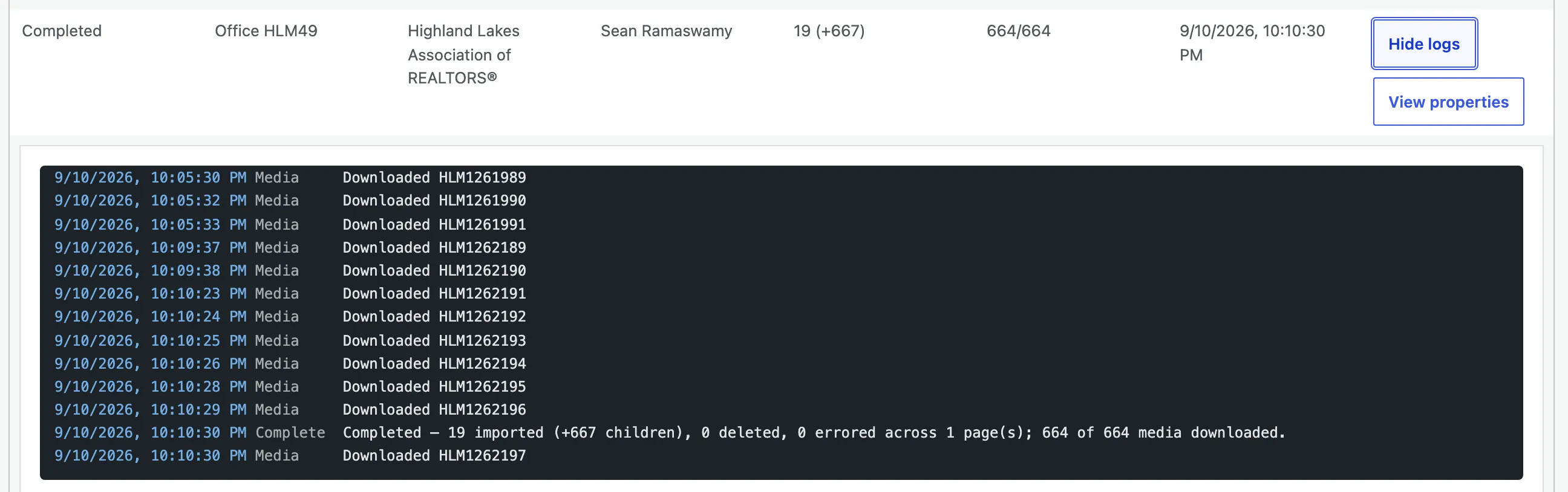
Each line is stamped with a time and a phase:
- Start, the run’s scope and where it resumed from.
- Fetch, each page: records fetched, imported, related records, media queued.
- OpenHouse, open houses imported for the run.
- Media, every photo outcome, downloaded or failed. Because MLS Grid meters media downloads, you’ll see paced “Retrying N pending photos” lines. That’s Barbican automatically re-attempting throttled photos, not an error.
- Complete, the final tally (records, related records, and N of N media downloaded).
Warnings and errors are colour-coded, and an errored line carries the MLS Grid HTTP status so you can tell a temporary throttle from a permanent failure.
The listings a run imported
Section titled “The listings a run imported”View properties on a finished run expands a companion panel: the exact listings that run brought in, each with its MLS ID, address, and a View property link straight to it.
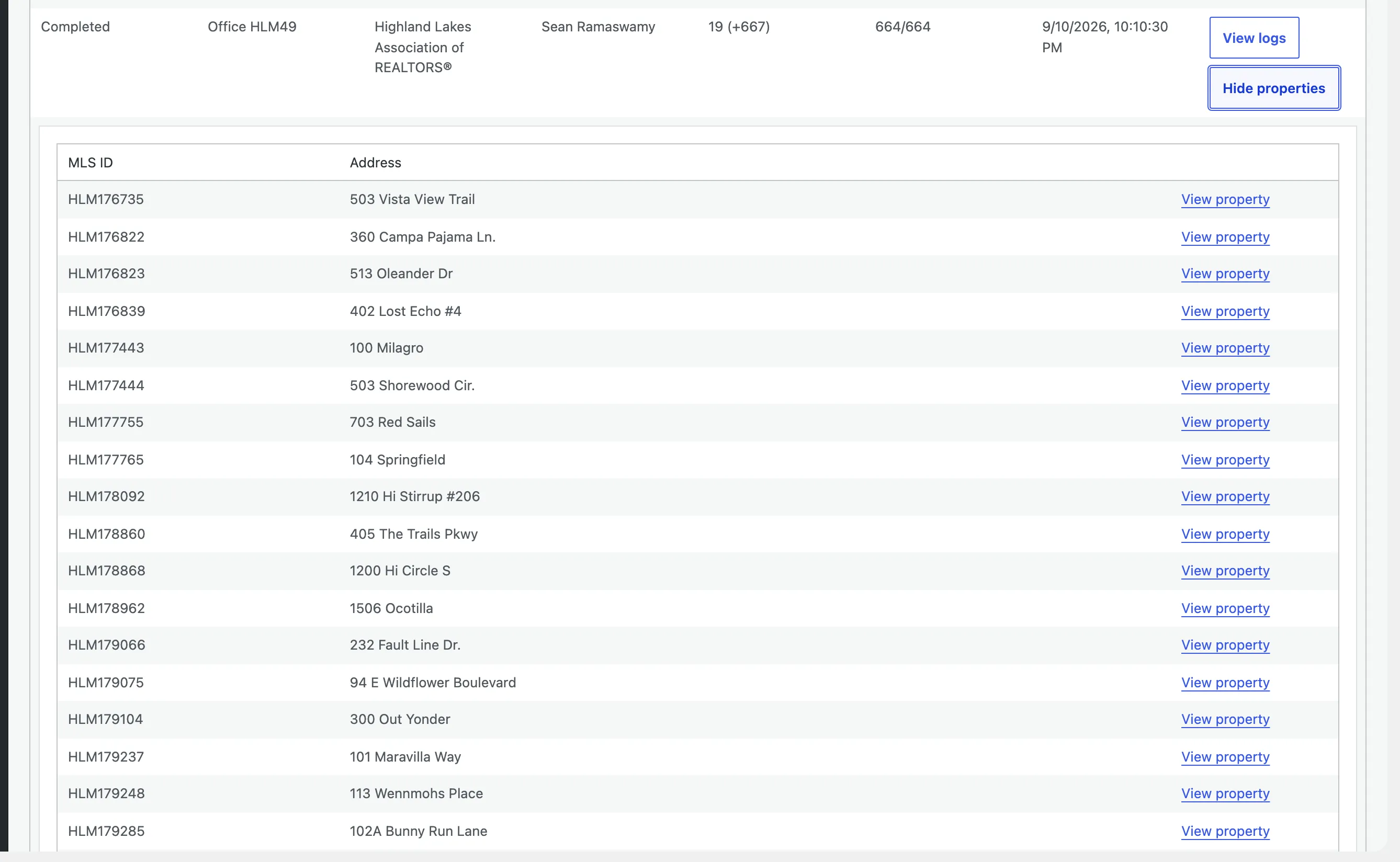
It’s the quickest way to jump from a run to the homes it added to your site.
Photos and retrying
Section titled “Photos and retrying”Photos localize after the records land. If some don’t come through (usually because MLS Grid’s signed photo URLs are time-limited), the run’s Photos column flags them, and a finished run offers a Retry N photo(s) button:
- Throttled or transient misses are simply retried.
- Expired photo URLs can’t be re-fetched from the same link. Re-importing the listing stamps fresh URLs and brings the missing photos in.
That’s the whole loop: connect once, import on demand, and watch each run through to a fully-populated listing on your site.