Connections
Connect Barbican to your MLS Grid feed, the reusable endpoint every import runs through.
A connection is your saved link to your MLS Grid feed: its API base URL and your access token, plus the list of MLS sources the feed carries. You set it up once and reuse it for every import. The connection is the endpoint, and each import is a run through it.
Open Barbican → Properties → MLS Import and stay on the Connections tab.
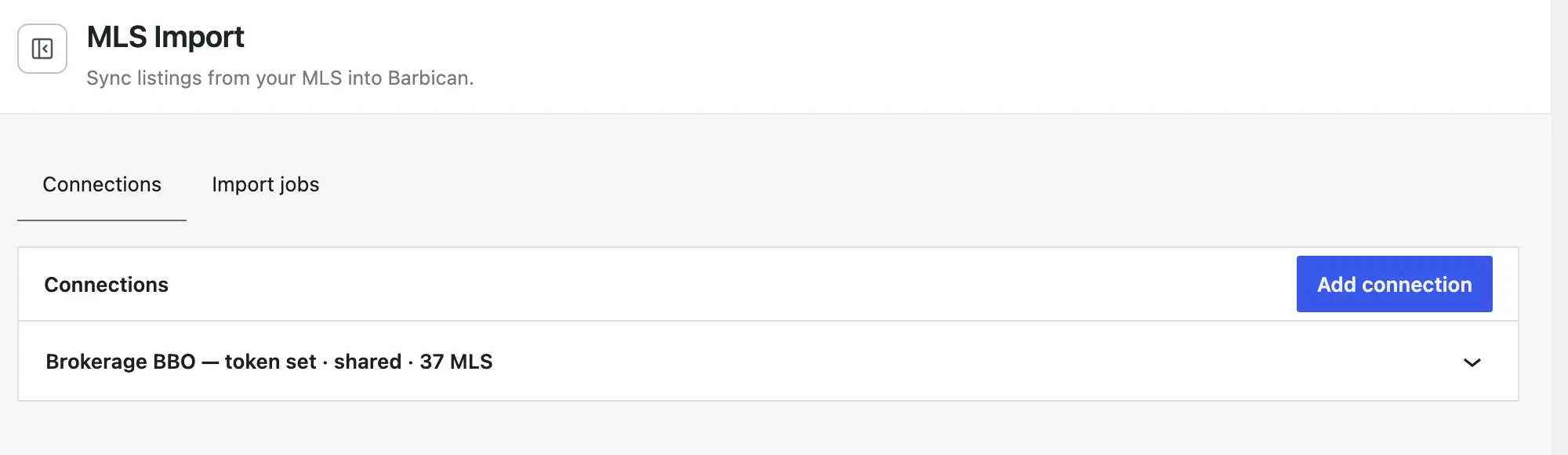
Add a connection
Section titled “Add a connection”-
Choose Add connection to open the setup form.
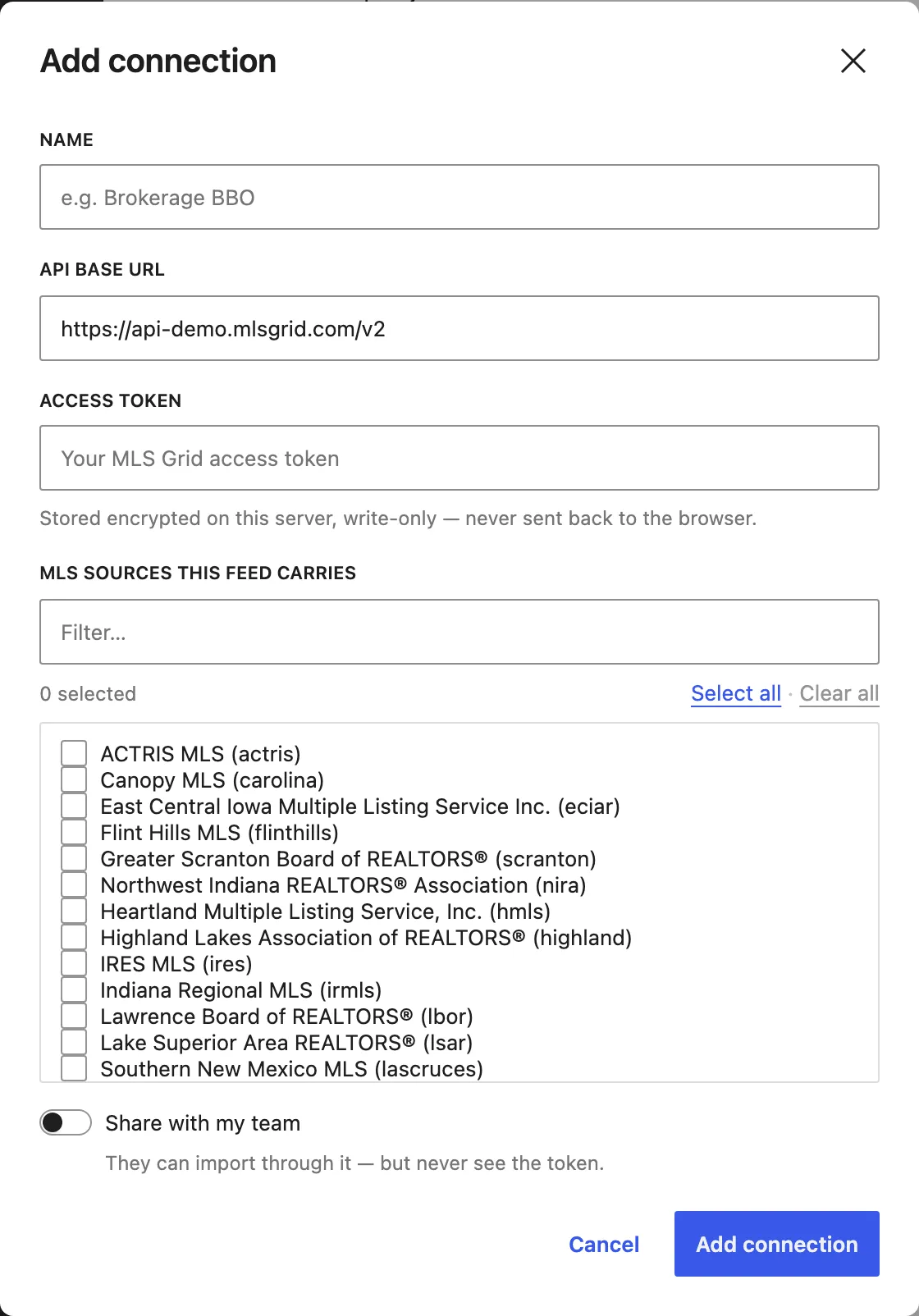
-
Name is a label you’ll recognise, e.g. Brokerage BBO or Demo feed.
-
API base URL is your MLS Grid endpoint. It defaults to the MLS Grid demo feed (
https://api-demo.mlsgrid.com/v2); replace it with your production URL when you’re live. -
Access token is the token you generate in the MLS Grid console. Barbican stores it encrypted on your own server, write-only, so it’s never sent back to the browser and your credentials never leave your site. (When editing a connection, leave this blank to keep the saved token.)
-
Under MLS sources this feed carries, tick the MLS(es) your feed includes. These are the sources you enabled in the MLS Grid console, and each import picks one of them to run against. Use the filter box to find yours quickly, or Select all / Clear all.
-
Optionally turn on Share with my team so other members can import through this connection. They can use it but never see the token. Then choose Add connection.
Test a connection
Section titled “Test a connection”Once a connection is saved, expand its row, pick an MLS under Test against, and choose Test connection. Barbican makes a live call and reports how many records came back (and the latest change timestamp), so you know the URL and token are good before you import. If the feed includes confidential fields, the result notes that Barbican suppresses them on your public site.
Who can use and edit a connection
Section titled “Who can use and edit a connection”- Use. Anyone who can see a connection can import through it, and using it never exposes the token.
- Edit, delete, or replace the token. Only the owner (whoever created it) or an administrator can. A shared connection is read-only to everyone else.
- Defaults. A connection an administrator creates is shared with the team by default (the common case: the broker sets up one org feed everyone reuses), and a connection a member creates is private until they share it.
With a connection in place, you’re ready to pull listings: Running an import.