Office
The full configuration page for your brokerage office in Barbican.
During setup you created your office with just a few details. The Office page (under Organization → Office) is where the office is fully configured.
Masthead
Section titled “Masthead”The top of the page shows your office at a glance: its logo, an optional building photo, the office name with its type and status, the MLS ID, and the office’s location, phone, and email. Click Add logo or Add a building photo to upload imagery, which also appears on your public office pages.
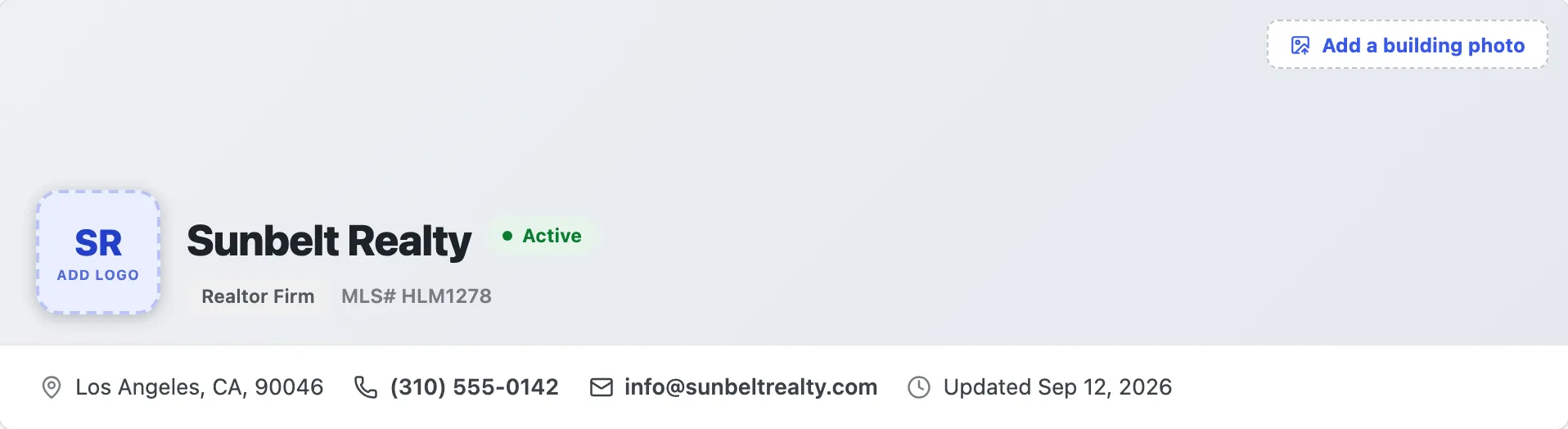
Below the masthead, the Bio is a free-text introduction to the brokerage, its story in its own words. Click into it to write or edit; it also appears on your public office pages. The bio is optional, so you can leave it empty.
Office details
Section titled “Office details”Below the bio, the Office Details card holds the full RESO field set, organized into tabs: Identity, Contact, Address, Personnel, and System. Edit any field in place; see Editing fields for how the tabs, in-app help, and inline editor work.
Branch offices
Section titled “Branch offices”If this is your main office, a Branch Offices section lets you add and manage branch locations that report to it. (Branches don’t show this section themselves.)
Shared sections
Section titled “Shared sections”The Office page also includes these sections, documented once and shared across resources:
- Social media, the office’s social profiles
- Corporate licenses, the brokerage’s license records
- Activity history, the office’s audit trail